Showing posts with label msoffice. Show all posts

February 14, 2020

How to crack MicroSoft Office Excel Password from a protected sheet using macros

Hi guys,


We worked in Consumerfed Infomation Technology Section, You already read our articles before.
Today we came up with a solution that you were searching for a long.

Hope everyone worked in excel sheet (microsoft) and knows how to protect excel sheet using a password.

Even once you have tried to crack the password? Here is a solution for it.

Try this.

Dont forget to post you comments, your responses are valuable


You have to run the following macros ( Id : 36909381)

Press Alt + fll then paste the code open the active password protected sheet then run the macros


Sub CrackExcelPassword()
  'Author +bithesh soubhagya

  Dim i As Integer, j As Integer, k As Integer
  Dim l As Integer, m As Integer, n As Integer
  Dim i1 As Integer, i2 As Integer, i3 As Integer
  Dim i4 As Integer, i5 As Integer, i6 As Integer
  On Error Resume Next
  For i = 65 To 66: For j = 65 To 66: For k = 65 To 66
  For l = 65 To 66: For m = 65 To 66: For i1 = 65 To 66
  For i2 = 65 To 66: For i3 = 65 To 66: For i4 = 65 To 66
  For i5 = 65 To 66: For i6 = 65 To 66: For n = 32 To 126
   
  ActiveSheet.Unprotect Chr(i) & Chr(j) & Chr(k) & _
      Chr(l) & Chr(m) & Chr(i1) & Chr(i2) & Chr(i3) & _
      Chr(i4) & Chr(i5) & Chr(i6) & Chr(n)
  If ActiveSheet.ProtectContents = False Then
      MsgBox "One usable password is " & Chr(i) & Chr(j) & _
          Chr(k) & Chr(l) & Chr(m) & Chr(i1) & Chr(i2) & _
          Chr(i3) & Chr(i4) & Chr(i5) & Chr(i6) & Chr(n)
   ActiveWorkbook.Sheets(1).Select
   Range("a1").FormulaR1C1 = Chr(i) & Chr(j) & _
          Chr(k) & Chr(l) & Chr(m) & Chr(i1) & Chr(i2) & _
          Chr(i3) & Chr(i4) & Chr(i5) & Chr(i6) & Chr(n)
       Exit Sub
  End If
  Next: Next: Next: Next: Next: Next
  Next: Next: Next: Next: Next: Next

End Sub


Thanks you reading this post.

You can send your queires to our email.. or you can post comments below.

:- Bithesh consumerfed kozhikode regional office

September 14, 2016

August 01, 2016

Combination Sales Graph for Consumerfed Kozhikode

Combination Sales Graph Tutorial

Combination Sales Graph Demo

Download File here

References


http://office.microsoft.com/en-in/excel-help/show-trends-and-forecast-sales-with-charts-HA001087785.aspx

http://office.microsoft.com/en-in/templates/annual-report-TC102896593.aspx

http://office.microsoft.com/en-in/templates/channel-partner-scorecard-TC104099162.aspx

http://www.seotakeaways.com/how-to-select-best-excel-charts-for-your-data-analysis-reporting/


Thanks to accounts manager +deepa for her  supports


http://javabelazy.blogspot.in/

May 19, 2016

Printer issues- consumerfed

Working on printer issues


Printer spooling not working

Go to System properties >>Advanced

Select >> Performance >> settings

Select    Data execution prevent

Select turn on DEP for all programs and services except those i select

click add

paste the bellow link to the file name box of the windows that opens

C:\windows\system32\spoolsv.exe

Select open

Select ok when you receive the warning then click apply.

Issue solved !

http://javabelazy.blogspot.in/

January 11, 2016

how to take column wise report using pivot table

How to take column wise report using pivot table

Pivot table helps you to analyse and summarize your data especially when the size of data is very high. The power of pivot table is beyond the scope of this blog.

Step 1:

Select the data table from excel sheet

DATA TABLE IN EXCEL

Step 2 :

Select pivot table

INSERT PIVOT TABLE

Step 3 :

Select the table data you want to manipulate

CHOOSE THE DATA FROM DATA TABLE

Step 4 :

Choose the pivot table details

CHOOSE PIVOT TABLE DETAILS


Step 5 :

Report

PIVOT TABLE REPORT


Thanks +deepajayaprakash payyanakkal  for your support

+Consumerfed IT Division

http://javabelazy.blogspot.in/

September 19, 2015

Working with microsoft sharepoint

What is the use of share point in an office


configuration files download here


Created an online chat application for Regional office kozhikode . The work was assigned by +bithesh soubhagya . M S Sharepoint was the most suitable application to do this job. Now the regional office staffs can share their work, assign tasks, internal chat etc.


by +belazy

thanks to +Shimjith +Vipin Cp

+Consumerfed IT Division

http://javabelazy.blogspot.in/

August 15, 2015

How to use pivot table in msoffice excel

Working with Pivot table in microsoft office excel

The Pivot Table in Microsoft Office Excel will make you analyze and summarize a large set of data very quickly. Pivot Table is considered to be a powerful feature in Microsoft Office Excel. You can also present data in variety of ways through pivot table. Here i m sharing a MS Excel Pivot table tutorial Or the scope of Pivot table in Excel.


PIVOT TABLE :- HOW TO CONSOLIDATE OR SUMMARIZE DATA


PIVOT TABLE SAMPLE
PIVOT TABLE in EXCEL SAMPLE


Choose the table you need to summarize/analyse.

Pivot Table Data
Creating Pivot table in MS office excel

Create a pivot table for that data : - Go to Insert tab >>  Pivot Table  >>  Create Pivot Table.
A window will be open now, where you have to show the data table. (Please omit the blank column in data table)


Pivot table property window
Creating Pivot Table in M S Office Excel

Choose the data that you want to analyze.

Table / Range : You have to show the data table ( Prefer the data table with header)

Pivot table property window
Creating Pivot Table in MS Office Excel

Choose the field to add in the report : just tick on branch name and amount. A new table with a column will be created having amount under branch name.


Creating Pivot Table in MS Office Excel

If you need to show branch name and sum of amount in separate columns just drag the field amount from row table to sigma function area. ( dragging option in right bottom ). Now the data table will change like below.

Pivot table summarization
Creating Pivot Table in MS Office Excel


These are another types of reports created using the same data using Pivot table in Microsoft Office Excel.

Pivot table analzyse
Creating Pivot Table in M S Office Excel


pivot table report in excel
Creating Pivot Table in MS Office Excel


Author : +belazy

Hope you enjoy the code.


another pivot table example


Thanks to +Shimjith  +Vipin Cp  and +deepajayaprakash payyanakkal  for their supports

@consumerfed  +consumerfed

http://javabelazy.blogspot.in/

June 15, 2015

How to consolidate multiple sheets into one sheet in excel

Consolidate in Excel

Description : Excel Consolidate helps you to consolidate your sheets/worksheets into one worksheet.
 Here we are going to consolidate 3 sheets unit1 , unit2 and unit3 to one sheet. the three sheets are shown below. Excel tips and tricks by +belazy .


How to sum up all the data in separates sheet into one


Receipts and Disbursement

Receipts and Disbursement of a single unit

Receipts and Disbursement


Receipts and Disbursement

Now click on the consolidate icon, it will be available in Data tab in excel 2010.


 A window will be open now, choose function as Sum (here we are going to sum up all the sheets)


click on the reference, choose the data table in sheets ancd click on add


check Top row & Left Column.


Consolidate Sheet

Consolidated excel sheet


To view the video tutorial : click here


To Know more about Cash Receipts and Cash Disbursement method in accountancy click here


Where to use : 


Author : +belazy

Thanks to +deepajayaprakash payyanakkal  for her support

+Consumerfed IT Division

Similar posts


create a commodity sales graph

multiple user sharing a  excel sheet


http://javabelazy.blogspot.in/

May 22, 2015

To create a shared excel sheet for multiple user access at real time


How to share an excel that helps multiple user to edit same time

I need an excel sheet , where multiple users ( class 4 employees ) can post mark list of students to an excel in my office, where higher officials need to check the result entered is correct or not whereas other staffs need to download the result before publishing. All the works has to done simultaneously. here is a solution for such issues. Over usage of styles will hang the file. If two users edit the same cell, the excel asks who's data to be saved while saving the document. If two users try to save the shared excel at same time, the file will be locked, the only thing you can do at this situation is to wait until the other person saves Or wait for some times the issue will be solved.


Share workbook Option is available in Review Tab.

Click on Share

Excel Share
Sharing in Excel


Check the option Allow changes by more than one user at the same time.

Once you shared the excel sheet and multiple user starts working on it, Here you can see the users who are working on the excel workspace.


Multiple user access excel
Allow sharing mode in excel


Click ok to share the excel


Excel Share
Share Excel Workspace


Track changes

To track changes made by all users use the following steps, go to track chages option in review tab, check the option when, who, where, List changes on a new sheet

shared excel track changes
Track chages in an excel


Posted by +belazy


http://javabelazy.blogspot.in/

November 18, 2014

Macros in Excel for consumerfed accounts manager deepa

Macros programming in ms office excel

Created a excel macro s programming that helps accounts section consumerfed to finish their accounts work smoothly and easily. Thanks to deepa, the accounts manager for her valuable supports. Here is a simple macros you can work with.

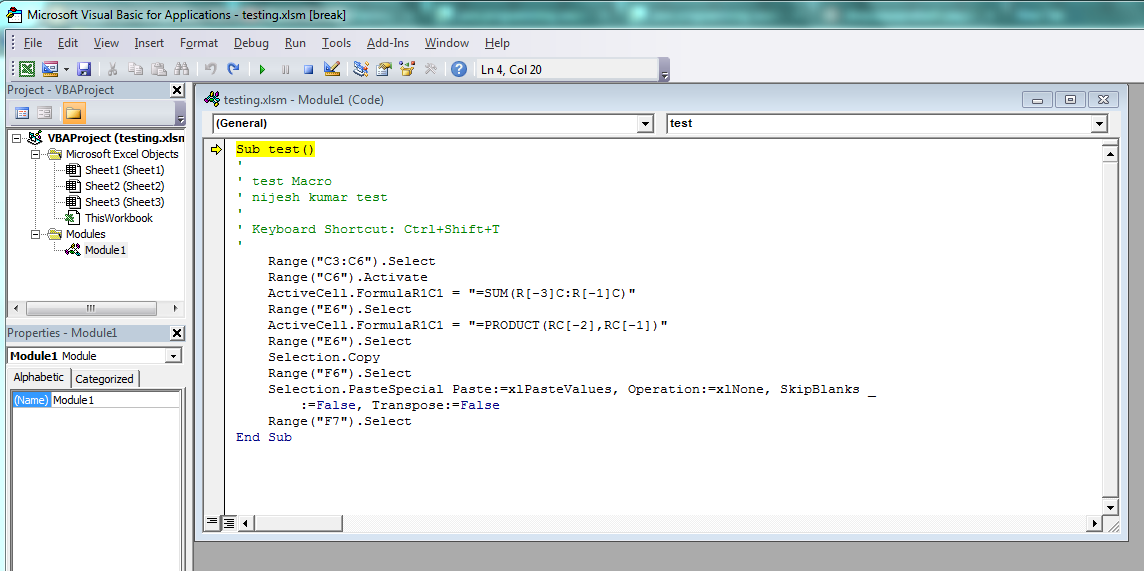
By key combination ctrl + shift + H will run the macro i created.

Macros programming in MS excel

Download the file here


http://javabelazy.blogspot.in/

July 11, 2014

Commodity sales graph in excel

How to create a graph in microsoft office excel

Create a new excel

Rename the first sheet to DATA

Data for Graph
Excel Data
Enter the following data to sheet1 (named as DATA)

Choose the type of data from insert tab in excel sheet

Type of graph available in MS Excel
choose the type of graph in excel
choose select data
Select Data for graph
Select Data

A window will be open

type the following to the textbox  " =DATA!$B$1:$E$7 " (where data is the sheet name, no need of double quotes)

A graph will be created, click on switch row/column

sales graph image
Sales commodity wise graph

The chart properties will be available in Layout tab

excel graph properties
Excel graph properties

You can add title , data label , align it etc etc.....


Excel graph
Author : +Shimjith

Description

If you are looking for sales commodity wise graph , then micro soft office excel package is a good option. you can choose what ever types of graphs. In addition to bar graph many options are there. you can easily switch from one graph to other one. you can switch the axis too, you can even customize where you want to keep your data series.

Java Graph API Documentation /


Similar posts


http://javabelazy.blogspot.in/

October 10, 2013

Example in java to read and write an excel sheet

How to read and write an excel sheet in java


/**
* Developed for ..... Account Section (For ...),
*/

package reader;

import java.io.File;

import java.io.IOException;

import java.security.acl.LastOwnerException;

import java.util.Vector;

import writer.WriteExcel;

import jxl.Cell;

import jxl.CellType;

import jxl.Sheet;

import jxl.Workbook;

import jxl.read.biff.BiffException;

import jxl.write.WriteException;

public class ReadExcel {

  private String inputFile;

  private double openingBalDL =130.95;

  private double openingBalCL =0.00; // Credit Last

  private double openingBalDN =0.00; // Debit New

  private double openingBalCN =0.00;

  private double allDebits = 0.00;

  private double allCredits = 0.00;

  private String dateLast = "4/3/12";

  private String dateNew = null;

  private Vector array = new Vector();

  public void setInputFile(String inputFile) {
    this.inputFile = inputFile;
  }

  public void read() throws IOException  {
    File inputWorkbook = new File(inputFile);
    Workbook w;
    try {
      w = Workbook.getWorkbook(inputWorkbook);
      // Get the first sheet
      Sheet sheet = w.getSheet(0);
      // Loop over first 10 column and lines
      System.out.println(" no of rows "+sheet.getRows());
      System.out.println(" no of col "+sheet.getColumns());
      int totCols = sheet.getColumns();
      int totRows = sheet.getRows();
      Cell cell = sheet.getCell(0, 1);  // col,row
      System.out.println(cell.getContents());
      if(cell.getContents().equalsIgnoreCase("Opening Balance B/D")){
          System.out.println(" --------------- true ---------------- ");
      }
    
              double debit = 0.00;
              double credit = 0.00;
              double openingBalDb = 130.95;
              double openingBalCr = 0.00;
              double balanceTotDb = 0.00;
              double balanceTotCr = 0.00;
              double closingBalCr = 0.00;
              double closingBalDb = 0.00;
              Vector value = null;
          for(int row =1; row               value = new Vector();
              Cell dateCell = sheet.getCell(0, row);
              Cell refCell = sheet.getCell(1, row);
              Cell partCell = sheet.getCell(2, row);
              Cell debCell = sheet.getCell(3, row);
              Cell crdCell = sheet.getCell(4, row);
              value.add(dateCell.getContents());
              value.add(refCell.getContents());
              value.add(partCell.getContents());
              if(!dateCell.getContents().equalsIgnoreCase("")){  // date ( all debit, credit0
                   debit = debit + Double.parseDouble(debCell.getContents());
                   credit = credit + Double.parseDouble(crdCell.getContents());
                   value.add(debCell.getContents());
                   value.add(crdCell.getContents());
                   System.out.println(" Row : "+row + " Debit : "+debit + " Credit : "+credit);
              } else{ // Balance total , closing balance , grant total, Opeining bala
                      if(partCell.getContents().equalsIgnoreCase("Balance Total")){
                          balanceTotDb = openingBalDb + debit;
                          balanceTotCr = credit;
                          System.out.println(" Balance Total Db : "+balanceTotDb + " Balance Total Cr :"+balanceTotCr);
                          openingBalDb = balanceTotDb;
                          value.add(balanceTotDb);
                          value.add(balanceTotCr);
                      }
                      if(partCell.getContents().equalsIgnoreCase("Closing Balance C/D")){
                          closingBalCr = 0.00;
                          closingBalDb = 0.00;
                        
                          if(balanceTotDb >= balanceTotCr){ //+ credit
                              closingBalCr = balanceTotDb - balanceTotCr;
                          }else{ // - debit
                              closingBalDb = balanceTotCr - balanceTotDb;
                          }
                          System.out.println(" Closing Balance Db "+closingBalDb + " Closing Balance Cr "+closingBalCr);
                          value.add(closingBalDb);
                          value.add(closingBalCr);
                      }if(partCell.getContents().equalsIgnoreCase("Grand Total")){
                          double grantTotalDb = balanceTotDb + closingBalDb;
                          double grantTotalCr = balanceTotCr + closingBalCr;
                          System.out.println(" Grant Total Db : "+grantTotalDb + " Grant Total Cr : "+grantTotalCr);
                          value.add(grantTotalDb);
                          value.add(grantTotalCr);
                      }
                      if(partCell.getContents().equalsIgnoreCase("Opening Balance B/D")){
                          double opBalDb = closingBalCr;
                          double opBalCr = closingBalDb;
                          System.out.println(" Opening Balance Db : " + opBalDb + " Opening Balance Cr : "+opBalCr);
                          value.add(opBalDb);
                          value.add(opBalCr);
                          debit = 0.00;
                        credit = 0.00;  
                        balanceTotDb = 0.00;
                        balanceTotCr = 0.00;
                        closingBalDb = 0.00;
                        closingBalCr = 0.00;
                      }
              }
              array.add(value);
              //Cell cell = sheet.getCell(col, row);
             // System.out.println(cell.getContents());
          }
  
       System.out.println(" array size "+array.size());
       WriteExcel test = new WriteExcel();
       test.setOutputFile("D:/Nijesh/Report.xls",array);
       try {
        test.write();
    } catch (WriteException e) {
        // TODO Auto-generated catch block
        e.printStackTrace();
    }
 
    } catch (BiffException e) {
      e.printStackTrace();
    }
  }

  public static void main(String[] args) throws IOException {
    ReadExcel test = new ReadExcel();
    test.setInputFile("D:/Jerin/Ultron/CashBook.xls");
    test.read();
  }

}

-----------------------

package writer;

import java.io.File;

import java.io.IOException;

import java.util.Locale;

import java.util.Vector;

import jxl.CellView;

import jxl.Workbook;

import jxl.WorkbookSettings;

import jxl.format.UnderlineStyle;

import jxl.write.Formula;

import jxl.write.Label;

import jxl.write.Number;

import jxl.write.WritableCellFormat;

import jxl.write.WritableFont;

import jxl.write.WritableSheet;

import jxl.write.WritableWorkbook;

import jxl.write.WriteException;

import jxl.write.biff.RowsExceededException;

public class WriteExcel {

  private WritableCellFormat timesBoldUnderline;

  private WritableCellFormat times;

  private String inputFile;

  private Vector array = null;


  public void setOutputFile(String inputFile) {
      this.inputFile = inputFile;
  }

  public void setOutputFile(String inputFile, Vector array) {
      this.inputFile = inputFile;
      this.array = array;  
    }

  public void write() throws IOException, WriteException {
    File file = new File(inputFile);
    WorkbookSettings wbSettings = new WorkbookSettings();

    wbSettings.setLocale(new Locale("en", "EN"));

    WritableWorkbook workbook = Workbook.createWorkbook(file, wbSettings);
    workbook.createSheet("Report", 0);
    WritableSheet excelSheet = workbook.getSheet(0);
    createLabel(excelSheet);
    createContent(excelSheet);

    workbook.write();
    workbook.close();
  }

  private void createLabel(WritableSheet sheet)
      throws WriteException {
    // Lets create a times font
    WritableFont times10pt = new WritableFont(WritableFont.TIMES, 10);
    // Define the cell format
    times = new WritableCellFormat(times10pt);
    // Lets automatically wrap the cells
    times.setWrap(true);

    // Create create a bold font with unterlines
    WritableFont times10ptBoldUnderline = new WritableFont(WritableFont.TIMES, 10, WritableFont.BOLD, false,
        UnderlineStyle.SINGLE);
    timesBoldUnderline = new WritableCellFormat(times10ptBoldUnderline);
    // Lets automatically wrap the cells
    timesBoldUnderline.setWrap(true);

    CellView cv = new CellView();
    cv.setFormat(times);
    cv.setFormat(timesBoldUnderline);
    cv.setAutosize(true);

    // Write a few headers
    addCaption(sheet, 0, 0, "Date");
    addCaption(sheet, 1, 0, "Reference");
    addCaption(sheet, 2, 0, "Particulars");
    addCaption(sheet, 3, 0, "Debit");
    addCaption(sheet, 4, 0, "Credit");
  

  }

  private void createContent(WritableSheet sheet) throws WriteException,
      RowsExceededException {
    
      int size = array.size();
    
      for(int row = 0; row < size; row ++){
          Vector val = array.get(row);
          for(int col =0; col<5 data-blogger-escaped-br="" data-blogger-escaped-col="">              addValues(sheet,col, row, val.get(col));
          }
        }


      /*
    for (int i = 1; i < 10; i++) {
      // First column
      addNumber(sheet, 0, i, i + 10);
      // Second column
      addNumber(sheet, 1, i, i * i);
    }
    */

  }

  private void addCaption(WritableSheet sheet, int column, int row, String s)
      throws RowsExceededException, WriteException {
    Label label;
    label = new Label(column, row, s, timesBoldUnderline);
    sheet.addCell(label);
  }

  private void addNumber(WritableSheet sheet, int column, int row,
      Integer integer    ) throws WriteException, RowsExceededException {
  
    Number number;
    number = new Number(column, row, integer, times);
    sheet.addCell(number);
  
  
  }

  private void addValues(WritableSheet sheet, int column, int row, Object obj)
          throws WriteException, RowsExceededException {
        Label label;
        label = new Label(column, row, obj.toString(), times);
        sheet.addCell(label);
      }

  private void addLabel(WritableSheet sheet, int column, int row, String s)
      throws WriteException, RowsExceededException {
    Label label;
    label = new Label(column, row, s, times);
    sheet.addCell(label);
  }

  public static void main(String[] args) throws WriteException, IOException {
    WriteExcel test = new WriteExcel();
    test.setOutputFile("D:/Akshara/Report.xls");
    test.write();
    System.out
        .println("Please check the result file under E:/Bithesh/consumerfed.xls ");
  }


}

--------------

You have to download jxl.jar to download this apps

The above program calculate balance total, closing balance, opening balance, grant total from given ledger entries in excels sheet...


Read : How to copy all images (resource) from ms word document?

August 29, 2013

Excel Formulae : How to convert text to date in Excel 2010 (fomat dd/MM/yyyy)

How to  convert a text data cell to date cell in Excel 2010

For Example the format of text file is given below .....
23/04/2012 12:00:00 AM
17/08/2012 12:00:00 AM
20/10/2012 12:00:00 AM
22/10/2012 12:00:00 AM
29/12/2012 12:00:00 AM

Me Nexus?

For this we have to convert the text to serial number.

the date value function returns the text date to serial number ( calculated as on jan 01 1990)

mid function is use to substring the text

apply the below formula

=DATEVALUE(CONCATENATE(MID(B1,7,4),"/",MID(B1,4,2),"/",MID(B1,1,2)))

after that format the cell as date


Hi Friends,

       Here you can find some Microsoft excel formula that could apply to your excel sheets. Please reply once you tried it out. mail me at  :: belazy1987atgmaildotcom

If you are unable to copy images or any resources from ms document file(.doc/.docx) format try this : java-lazy blog

+joseph james 
+Vipin Cp


Thanks +deepajayaprakash payyanakkal  for her support


http://belazy.blog.com/

November 30, 2012

How to copy images from ms word documents

How to copy images from ms word documents 2000, 2003, 2007, 2010 to computer/ How to download resources(images) in a microsoft office document to my system.


Description: The tutorial help you to save images on microsoft word documents(.doc file ) into your system. If you cant right click on image and save to your computer try this.


Open the ms document (.doc file)


Go to file (Or in key board type Alt + F)

in menu there will be an option for saving file, Save As the file in another location.

save As as web page. you can see there in an option for saving the file as webpage in the drop down box

give the extension type to fileName.htm to new file

your file will be now saved as html file , There will separate folder for resources there you can find your images....

Author : +Shimjith

http://belazy.blog.com/

Facebook comments